Step-by-step guide
How to merge PDF files on your phone
Have several scans or documents and want to send them as one file? PhoneMe merges PDFs on your phone. Pages are copied 1:1, so nothing loses quality, and your documents never go online.
Get it on Google Play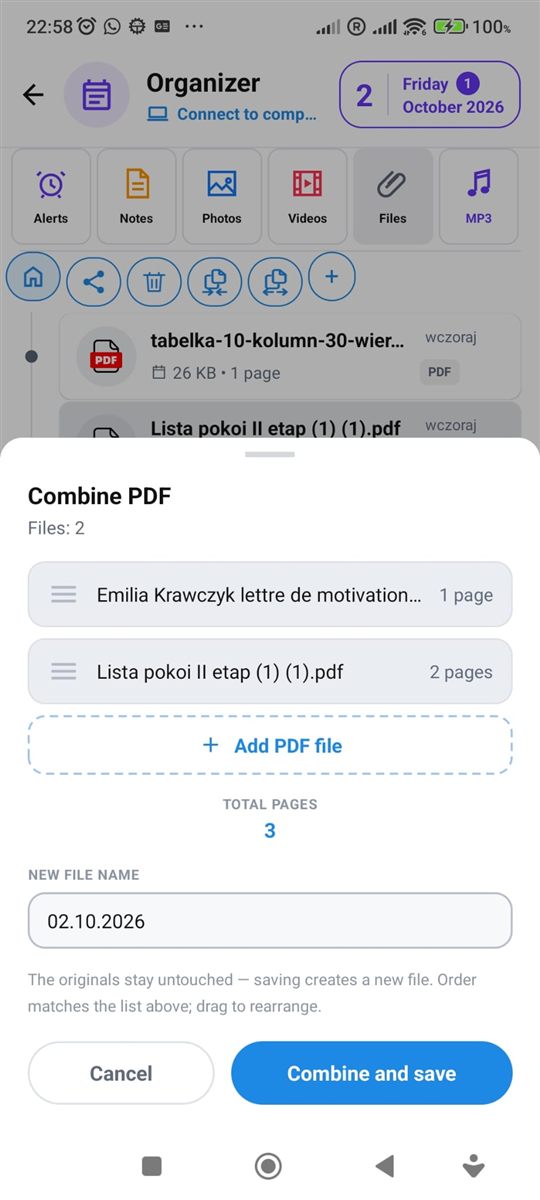
Step by step
All you need is an Android phone and the free PhoneMe app.
- 1Install PhoneMe from Google Play and open the Organizer, Files tab.
- 2Add your PDF files with the green + button if they aren’t there yet.
- 3Press and hold the first PDF, then tap the others.
- 4In the row next to the home button, tap Merge PDF.
- 5Check the order (drag files to change it) and type a name for the new file.
- 6Save. The new PDF appears in the Files tab and the originals stay untouched.
Tip
Need the opposite – just a few pages from a big PDF? Select one file and use Split PDF: you’ll see page thumbnails, and each selected page is saved as a separate file.
Questions
Will the merged PDF lose quality?
No. Pages are copied 1:1, without re-compression.
Are my documents uploaded?
No. Everything happens on your phone.
Can I print the merged file?
Yes. Open it and tap “Print” – any printer on your Wi-Fi network will do.