Step-by-step guide
How to convert photos to PDF
Need to send a contract, a certificate or a receipt as a PDF? Take photos of the pages and turn them into one PDF file in PhoneMe. The pages are saved in good, print-ready quality and the photos never go online.
Get it on Google Play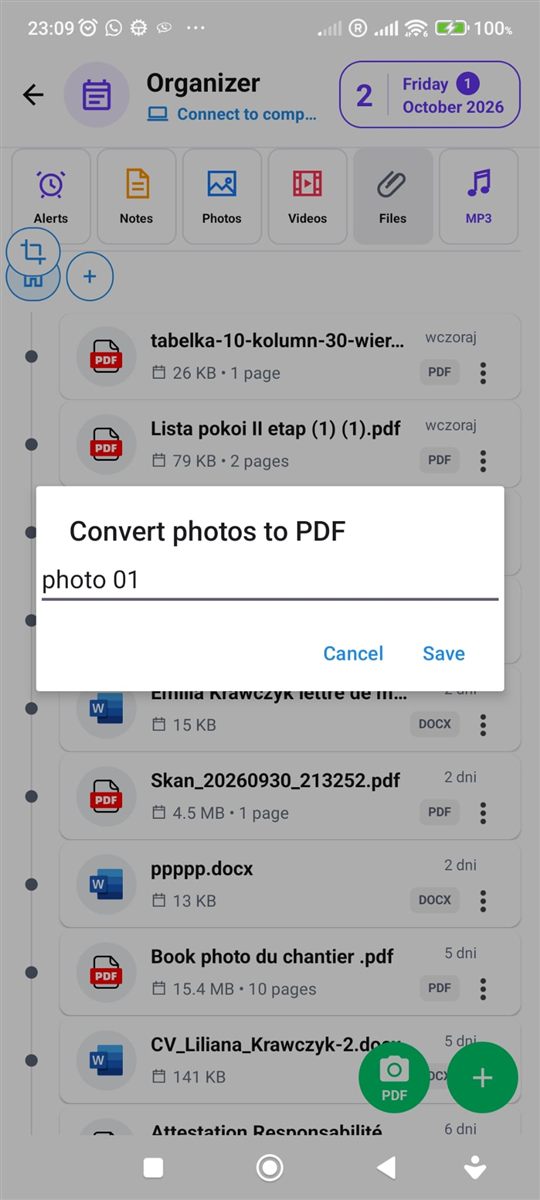
Step by step
All you need is an Android phone and the free PhoneMe app.
- 1Install PhoneMe from Google Play and open the Organizer, Photos tab.
- 2Add the photos of your document with the green + button.
- 3Press and hold the first photo, then tap the other pages.
- 4In the row next to the home button, tap the PDF button – the Convert photos to PDF window opens.
- 5Type a file name and tap Save. The finished PDF appears in the Files tab.
- 6Open it to check the pages – you can share or print it from there.
Tip
Before converting, you can crop and rotate the photos (select one photo and tap the crop button) so the pages show only the document.
Questions
Is the PDF good enough to print?
Yes. The photos are saved at a print-ready resolution.
Are the photos uploaded to a server?
No. The PDF is created on your phone.
Can I add more pages later?
Yes. Make a second PDF and combine both with “Merge PDF” in the Files tab.