PhoneMe on your computer – chats and Organizer in your browser
Type on a real keyboard, drag files from your computer straight to your phone and view photos on a big screen. Just scan a code in the app – your data goes directly from your phone and is never stored on a server.
Get it on Google Play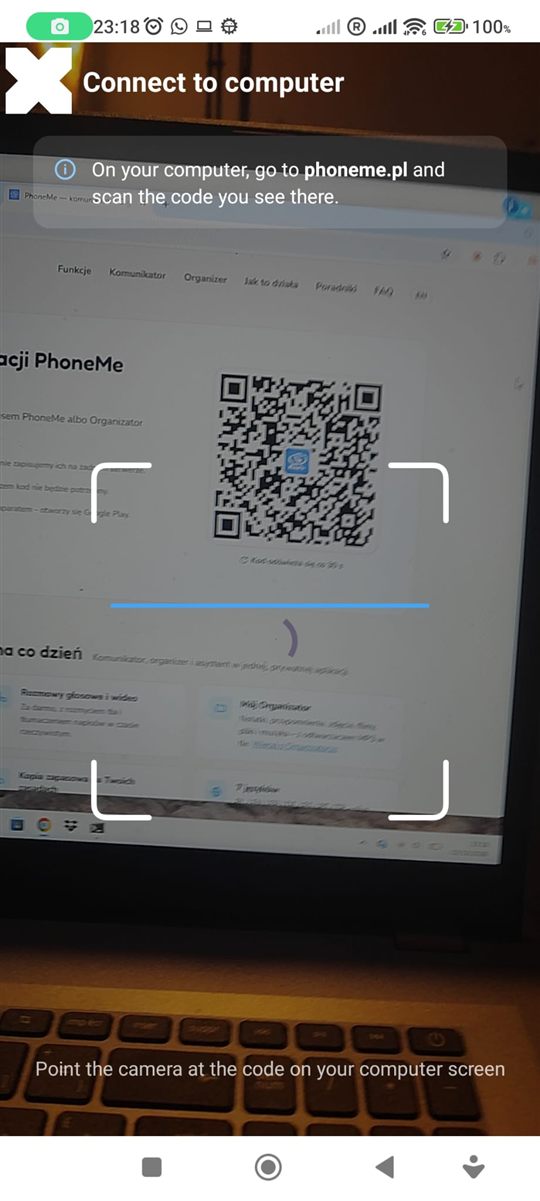
How to connect your phone to your computer
It takes a few seconds.
- 1Open phoneme.pl on your computer – you will see a QR code.
- 2On your phone, open PhoneMe and tap Connect to computer under the PhoneMe or Organizer title.
- 3Point the camera at the code. The computer is remembered – next time you won’t need the code.
What you can do on your computer
Chats on the left, Organizer on the right.
Chats
Read and write messages on a keyboard, send photos and files from your computer.
Drag and drop
Drag a file from your desktop to the Organizer or a chat – it goes straight to your phone.
Photos and documents on a big screen
View photos and PDFs enlarged, download them to your computer and print them.
Voice notes from your computer
Record a note with your computer’s microphone – it is saved in the Organizer on your phone.
Computer remembered
After the first connection just open phoneme.pl – no scanning again.
No server in between
The computer connects directly to your phone. Your data is not stored on a PhoneMe server.
Questions – PhoneMe on your computer
Do I need to install anything on my computer?
No. A browser is all you need – Chrome, Edge, Firefox or Safari.
Are my chats stored on a server?
No. The computer connects directly to your phone and shows what is on the phone.
Does my phone need to be on?
Yes. The phone needs internet and the PhoneMe app, because it sends the data to the computer.
Is the computer view in English?
The computer view is currently in Polish. An English version is on the way.