Step-by-step guide
How to convert a voice recording to text
Rather talk than type? Record a voice note in PhoneMe and the app turns it into text by itself. Speech recognition runs on your phone – the recording is never uploaded.
Get it on Google Play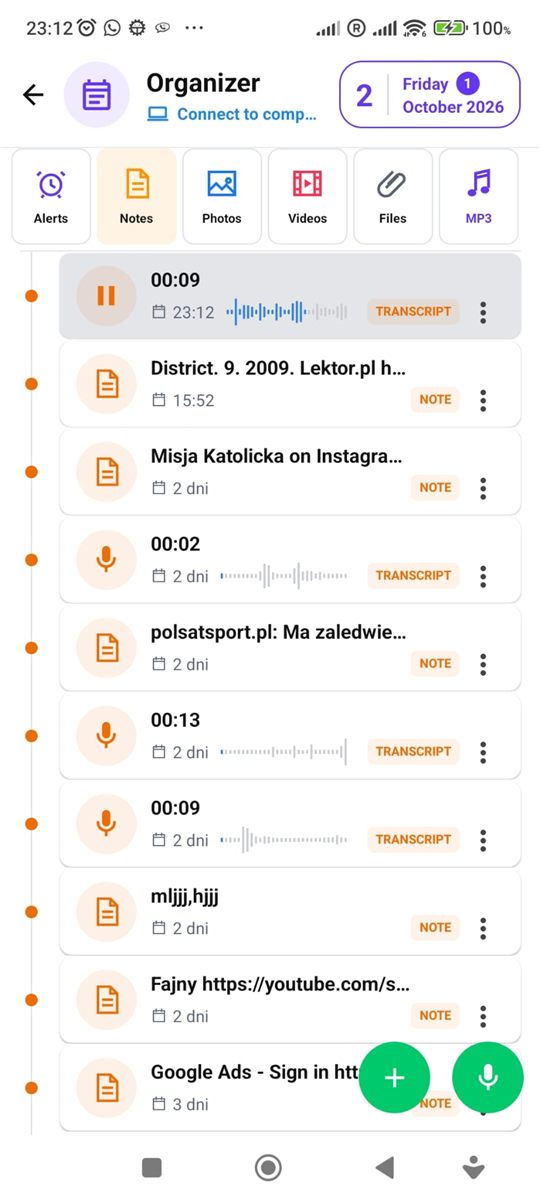
Step by step
All you need is an Android phone and the free PhoneMe app.
- 1Install PhoneMe from Google Play and open the Organizer, Notes tab.
- 2Tap the microphone and speak. You can also hold it – recording stops when you let go.
- 3Finish recording. The voice note appears in the list.
- 4PhoneMe turns the recording into text in the background – you can do something else meanwhile.
- 5When the text is ready, tap the TRANSCRIPT label next to the note.
- 6You’ll see the whole text. The speaker icon in the corner reads it aloud.
Tip
It works best when you record close to the phone in a quiet place. Transcription doesn’t need internet.
Questions
Is the recording uploaded to a server?
No. Speech-to-text runs on your phone.
Does it work offline?
Yes.
Can I transcribe a voice message from a chat?
Yes, voice messages in the chat have transcription too.