Step-by-step guide
How to trim a video on your phone
Is the recording too long and you only want to send the best moment? PhoneMe trims a video on your phone or cuts a section out of the middle. The cut is lossless – the video is not re-encoded, so the quality doesn’t change.
Get it on Google Play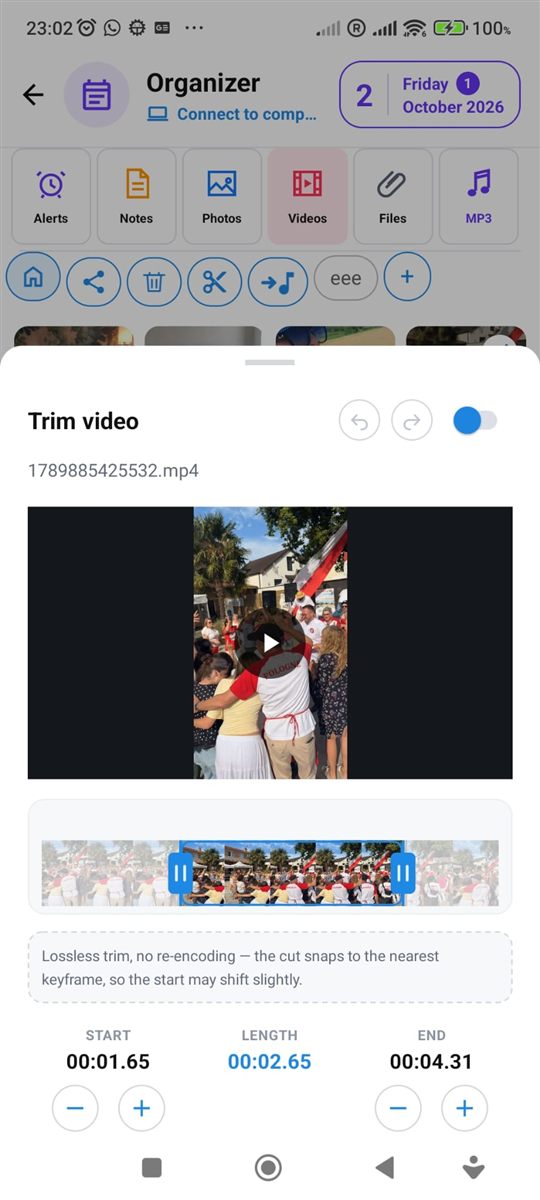
Step by step
All you need is an Android phone and the free PhoneMe app.
- 1Install PhoneMe from Google Play and open the Organizer, Videos tab.
- 2Add the video with the green + button if it isn’t there yet.
- 3Press and hold the video to select it.
- 4In the row next to the home button, tap the scissors – the Trim video window opens.
- 5Set the start and end of the clip. Use the switch next to the title to cut a section out of the middle instead.
- 6Tap Apply, then save a copy. The trimmed video appears in the Videos tab.
Tip
A lossless cut snaps to the nearest keyframe, so the start may move by a fraction of a second. Leave a little extra at the start of your clip.
Questions
Will the video lose quality?
No. The video is cut without re-encoding.
Will the original video be changed?
No. You save a copy and the original stays unchanged.
Can I extract just the sound from a video?
Yes – see the guide “How to extract audio from a video”.