Step-by-step guide
How to extract audio from a video
Recorded a concert, a lecture or birthday wishes and need just the sound? PhoneMe extracts the audio track from the video and saves it as a music file. The video stays unchanged.
Get it on Google Play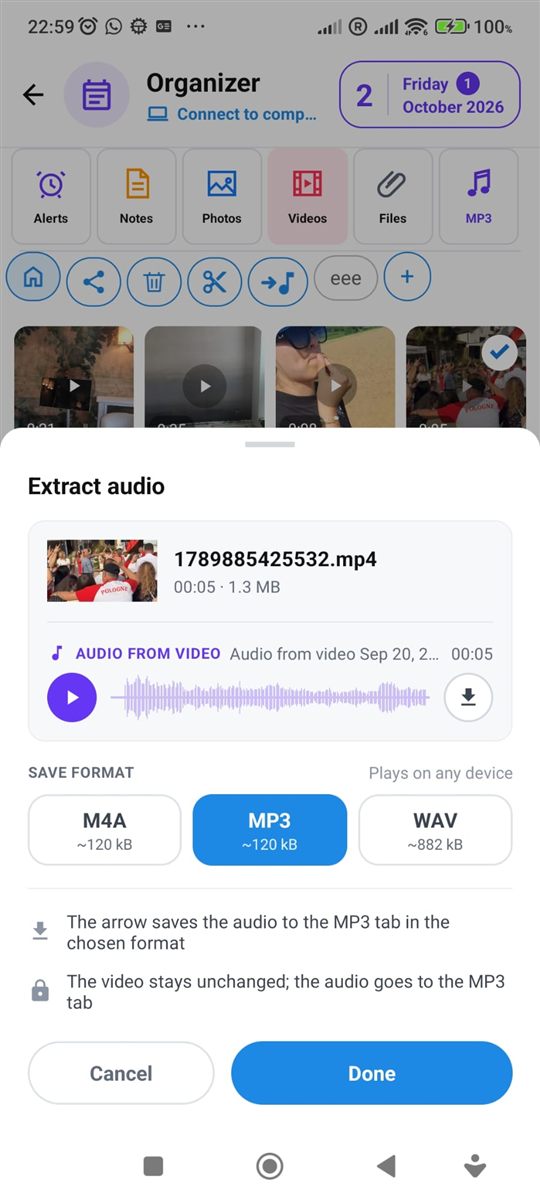
Step by step
All you need is an Android phone and the free PhoneMe app.
- 1Install PhoneMe from Google Play and open the Organizer, Videos tab.
- 2Add the video with the green + button if it isn’t there yet.
- 3Press and hold the video to select it.
- 4In the row next to the home button, tap the button with a note – Extract audio.
- 5Listen to the audio and choose a format: MP3, M4A or WAV.
- 6Tap the arrow to save. The audio file appears in the MP3 tab.
Tip
You can trim the new file right away in the MP3 tab – select it and tap Trim (scissors).
Questions
Will the video be changed?
No. The video stays unchanged and the audio is saved as a separate file.
Which format should I choose?
MP3 plays on any device, M4A gives a small file in good quality, and WAV is lossless but large.
Where do I find the saved audio?
In the MP3 tab of the Organizer.