Step-by-step guide
How to separate vocals from music
Need a karaoke backing track or just the vocals from a song? PhoneMe splits a song into two files: vocals (voice without music) and backing track (music without voice). Everything happens on your phone – the file is never uploaded.
Get it on Google Play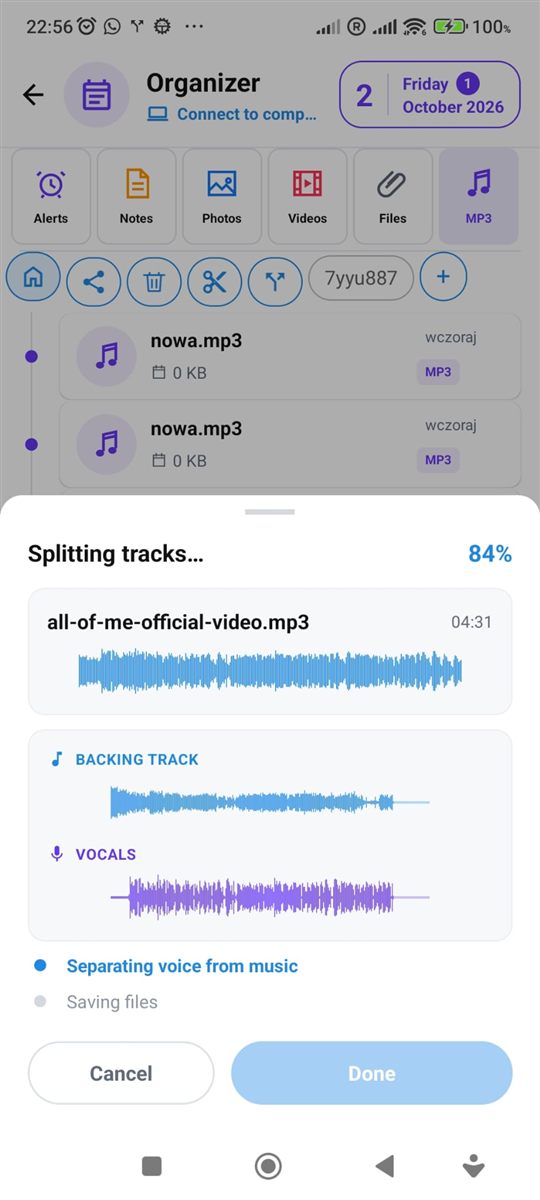
Step by step
All you need is an Android phone and the free PhoneMe app.
- 1Install PhoneMe from Google Play and open the Organizer, MP3 tab.
- 2Add the song with the green + button if it isn’t there yet.
- 3Press and hold the song to select it.
- 4In the row next to the home button, tap Split into vocals and backing track.
- 5Choose the save format: MP3 (plays anywhere), M4A (small file) or WAV (lossless).
- 6Tap Split. After about a minute two new files appear in the MP3 tab: vocals and backing track.
Tip
The first time, the app downloads an add-on it needs for splitting. You can leave the app meanwhile – the split finishes on its own.
Questions
Does it work offline?
Yes – after the add-on is downloaded once, splitting works on your phone without internet.
Is the song uploaded to a server?
No. The file never leaves your phone and the original stays unchanged.
How long does it take?
Usually about a minute, depending on the song length and your phone.