Step-by-step guide
How to trim an MP3 on your phone
Want a ringtone from the chorus, to cut silence at the start of a recording or remove a section from the middle? PhoneMe trims MP3 files on your phone, accurate to 0.1 seconds. The original stays unchanged – you save a copy.
Get it on Google Play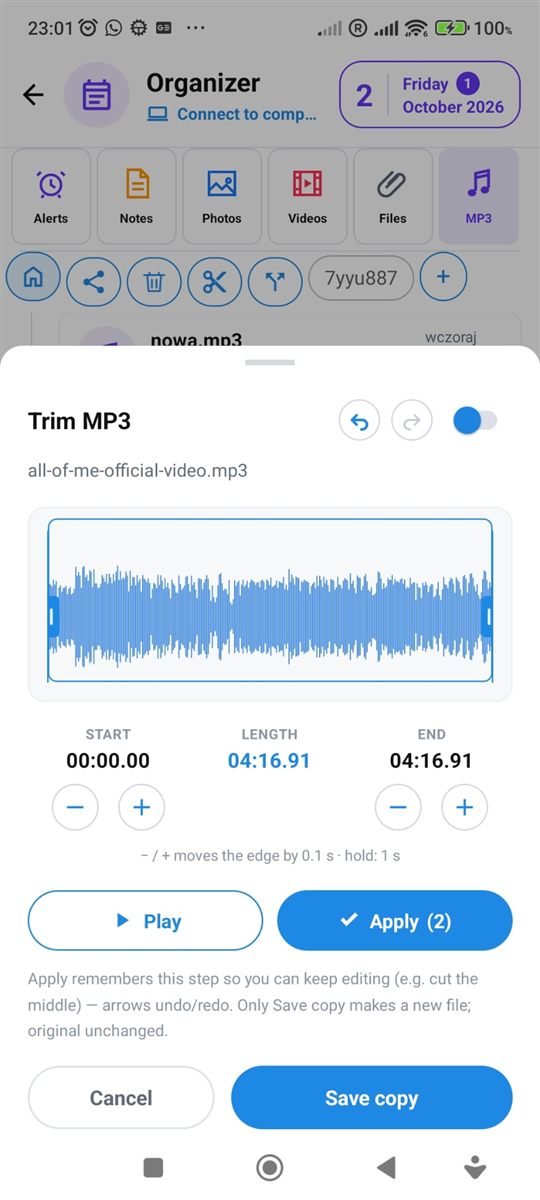
Step by step
All you need is an Android phone and the free PhoneMe app.
- 1Install PhoneMe from Google Play and open the Organizer, MP3 tab.
- 2Add the song with the green + button if it isn’t there yet, then press and hold it to select it.
- 3In the row next to the home button, tap the scissors – the Trim MP3 window opens.
- 4Move the edges on the waveform. The − and + buttons nudge them by 0.1 seconds, and Play lets you hear the result.
- 5Want to remove a section from the middle? Use the switch next to the title to change the mode and mark the part to cut out.
- 6Tap Apply, then Save copy. The trimmed file appears in the MP3 tab.
Tip
Apply remembers each step, so you can first trim the ends and then cut out the middle. The arrows undo and redo. It also works with M4A and WAV files.
Questions
Does trimming reduce quality?
No. The file is cut without re-compression.
Will the original be changed?
No. “Save copy” creates a new file and the original stays unchanged.
How do I set the trimmed song as a ringtone?
Save a copy, then choose that file as your ringtone in your phone’s sound settings.