Step-by-step guide
How to create a group chat
Want to chat with your family, class or team in one place? In PhoneMe you set up a group chat in seconds. Messages, photos, videos and voice notes reach everyone at once, and the chat history stays only on your phones.
Get it on Google Play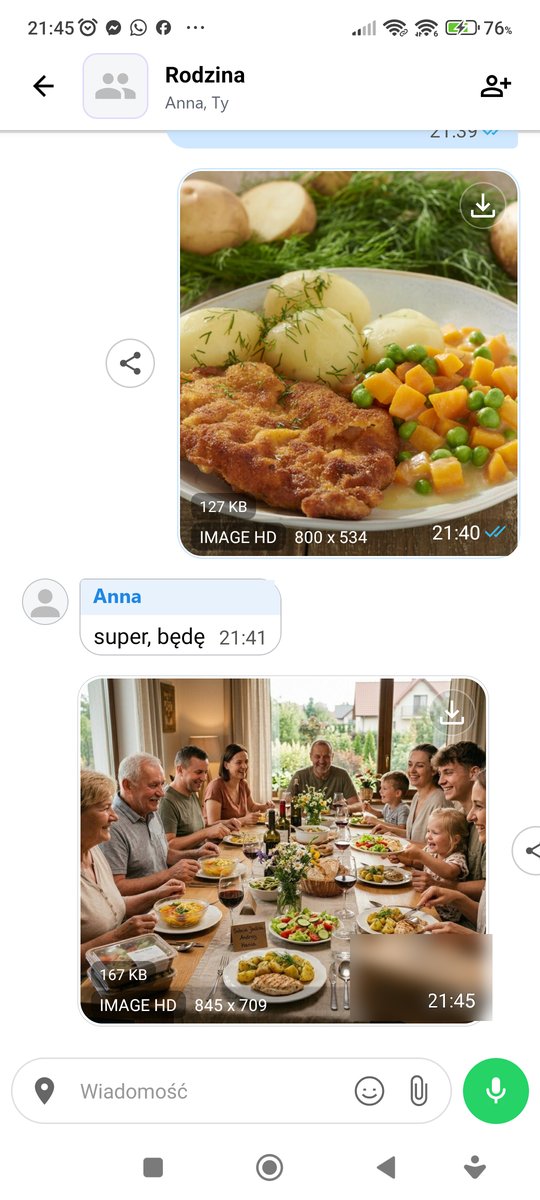
Step by step
All you need is an Android phone and the free PhoneMe app.
- 1Install PhoneMe from Google Play. The people you want to add need PhoneMe too.
- 2On the main screen, tap + at the end of the tab row (after Recents, Contacts and Calls).
- 3On the New group screen, type the group name. You can add a group photo too.
- 4Select the people who should be in the group. The list shows who already has PhoneMe.
- 5Tap Create group. The group appears in Recents and as its own tab at the top.
- 6Write, send photos and voice notes. Tap the group name at the top to add a person, mute notifications or rename the group.
Tip
In a group you can send photos, videos and files up to 20 MB. Send a bigger file to one person in a one-to-one chat – there is no limit there.
Questions
How many people can be in a group?
Up to 32 people including you.
Does PhoneMe store group messages?
Not permanently. A message waits for its recipients for at most 7 days and then disappears. The chat history is only on the group members’ phones.
Who can change the group name or photo?
The group admins. Whoever creates the group is an admin from the start.