Step-by-step guide
How to call from your computer
Sitting at your computer and don’t want to hold the phone to your ear? Connect PhoneMe to your computer and call straight from the browser – voice or video, with your laptop’s microphone and camera. Nothing to install on the computer.
Get it on Google Play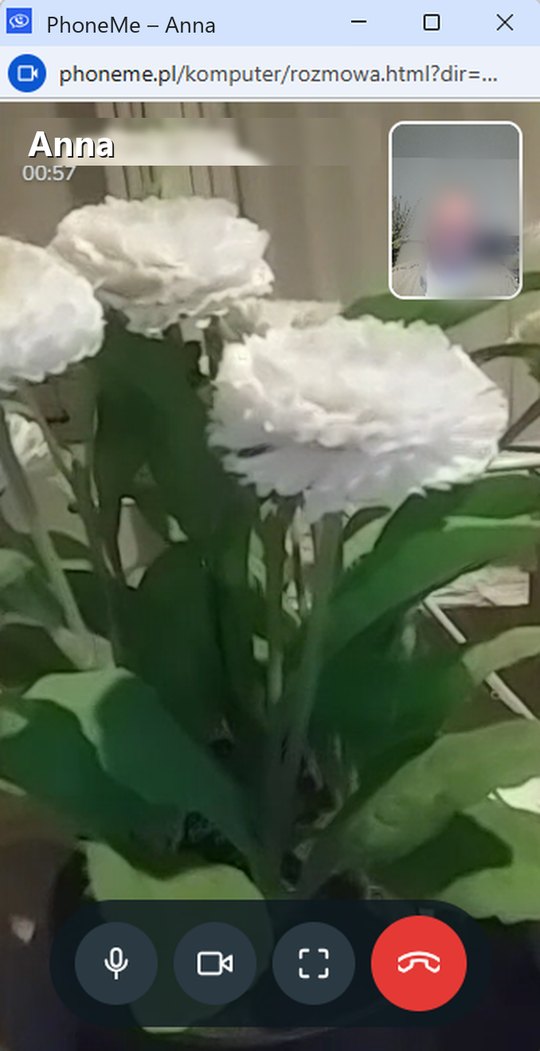
Step by step
All you need is an Android phone and the free PhoneMe app.
- 1Install PhoneMe from Google Play on your phone.
- 2On your computer, open phoneme.pl. You’ll see a code to scan.
- 3On your phone, tap Connect to computer under the PhoneMe title and point the camera at the code.
- 4On the computer, open the chat with the person you want to call.
- 5Click the handset (voice call) or the camera (video) in the top right corner.
- 6The first time, the browser asks for access to the microphone and camera – click Allow. The other person gets a normal PhoneMe call on their phone.
Tip
The computer is remembered – next time just open phoneme.pl, no scanning needed. Your phone with PhoneMe should be switched on and online.
Questions
Do I need to install a program on my computer?
No. A browser such as Chrome or Edge is enough.
Are calls from the computer free?
Yes, they are free – just like on the phone.
Does the person I call need to be at a computer?
No. They answer on their phone with PhoneMe, like any other call.