Step-by-step guide
How to blur the background in a video call
Calling from the kitchen, a hotel or a room you didn’t get to tidy? In a PhoneMe video call you can blur everything behind you with one button. The other person sees you clearly and the background blurred.
Get it on Google Play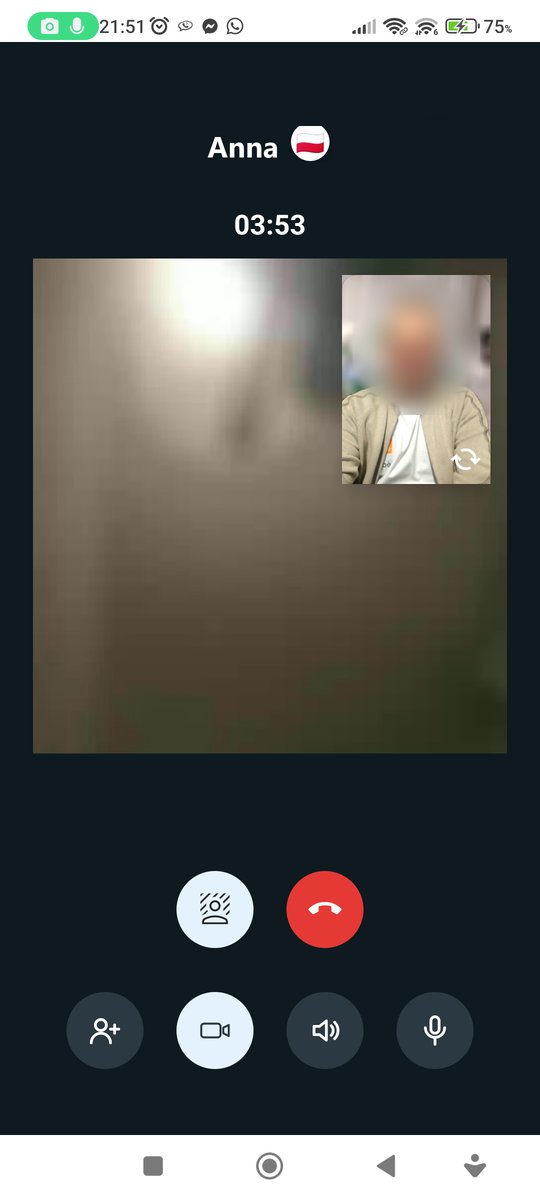
Step by step
All you need is an Android phone and the free PhoneMe app.
- 1Install PhoneMe from Google Play.
- 2Open the chat with the person you want to call.
- 3Tap the camera at the top to start a video call.
- 4At the bottom of the screen, tap the Background blur button.
- 5The background behind you blurs right away – you’ll see it in your small window.
- 6To turn the blur off, tap the same button again.
Tip
Blur works best in good light and when you stand out clearly from the background.
Questions
Does the other person see the blurred background?
Yes. The blur is applied before the picture leaves your phone.
Is the video sent online to be blurred?
No. Your phone does the blurring.
Is background blur paid?
No. Like all calls in PhoneMe, it’s free.