Step-by-step guide
How to transfer photos from phone to computer
Lost your cable and don’t want to upload photos to the cloud? With PhoneMe you move photos and files from your phone to your computer through the browser. Data goes straight from your phone – it is never stored on a server.
Get it on Google Play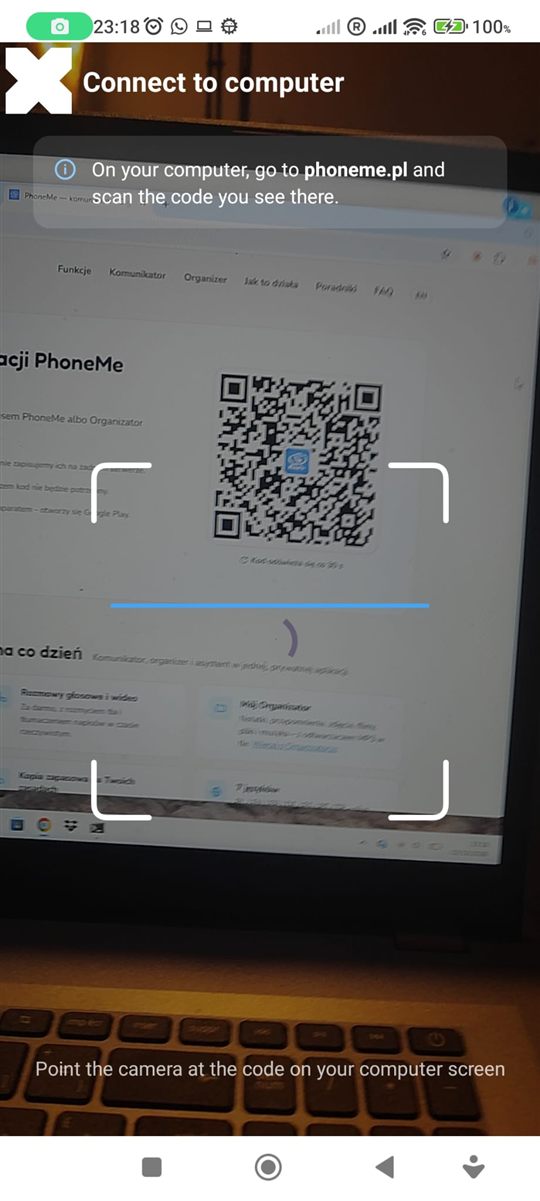
Step by step
All you need is an Android phone and the free PhoneMe app.
- 1Add photos to the Photos tab in the PhoneMe Organizer (green + button).
- 2On your computer, open phoneme.pl – you’ll see a QR code.
- 3On your phone, tap Connect to computer under the PhoneMe or Organizer title and scan the code.
- 4Your Organizer opens on the computer. Go to the Photos tab.
- 5Click a photo to enlarge it and click Pobierz (Download).
- 6It works the other way too: drag a file from your desktop into the Organizer and it goes to your phone.
Tip
The computer is remembered – next time just open phoneme.pl, no scanning. The computer view is currently in Polish.
Questions
Do the photos go to the cloud?
No. The computer connects directly to your phone.
Do I need to install anything on my computer?
No, a browser is enough.
Does the phone need to be near the computer?
No. The phone just needs internet and PhoneMe open.